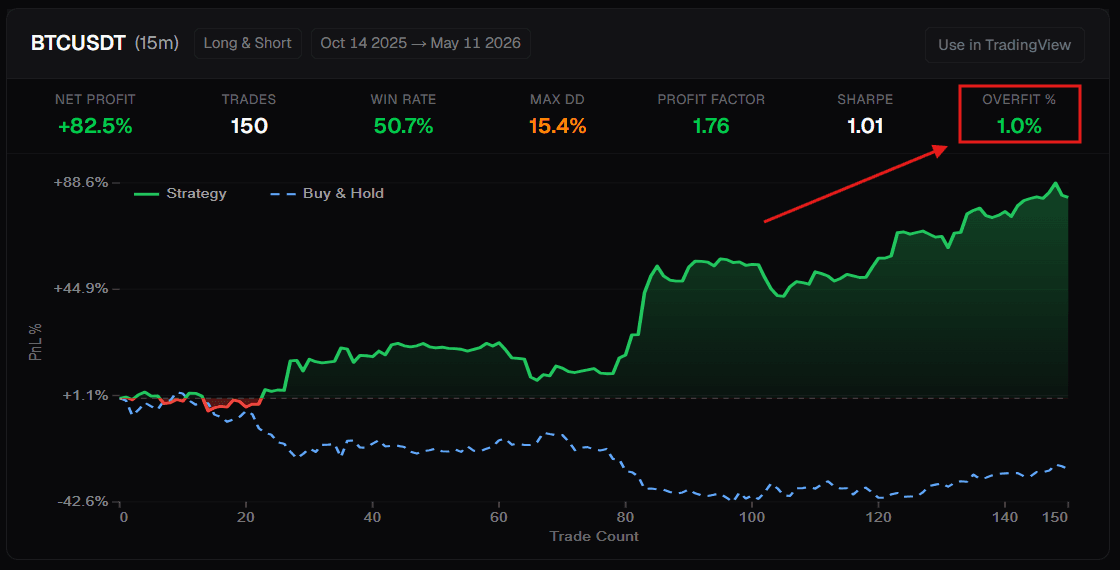
Two upgrades to the AlgoAlpha workflow shipped this cycle. Together they close the loop between finding a backtested strategy in Atlas and actually running it on your own TradingView chart — with one new metric to help you tell apart strategies that have a real edge from strategies that just got lucky in history.
TL;DR
Overfit %— a new column on every Atlas strategy result. It estimates how much of the strategy's historical performance could plausibly be statistical luck rather than a real edge. Lower is better; green is good, red is a warning to look harder before trusting the number. It sits right next to Sharpe, Win Rate, and the other metrics you already use.
Atlas → TradingView transfer— when you find a strategy you like in Atlas, you can now copy its rules and paste them into the Backtest - Strategy Builderindicator on TradingView. No wiring, no signal plumbing, no rebuilding the logic. Same rules, your chart, your timeframe.
Feature 1 — Overfit %
A strategy that looks great in backtest can fail in live trading for one specific reason: it was tuned, deliberately or accidentally, to the exact historical bars it was tested on. Change those bars and the edge vanishes. That's overfitting, and it's the single biggest reason traders get burned by good-looking backtests.
Atlas now estimates how overfit each strategy is, and shows the result asOverfit %on every strategy card.
What it actually does, in plain words
For each strategy, Atlas runs an experiment: it takes the strategy's exact entry and exit rules, and applies them toshuffled versions of the same historical price data. The shuffling preserves what barslooklike (gaps, ranges, candle shapes) but breaks theorder— the meaningful market structure is destroyed, leaving statistical noise behind.
Then Atlas counts how often the strategy still scores as well on shuffled noise as it did on the real bars. The result is a percentage:
-
A low Overfit % means the strategy almost never beats noise— its real-bar performance is hard to explain by luck. Trust it more. A low Overfit % means the strategy almost never beats noise— its real-bar performance is hard to explain by luck. Trust it more.
-
A high Overfit % means random noise frequently matches or beats the strategy— the historical edge could easily be coincidence. Trust it less. A high Overfit % means random noise frequently matches or beats the strategy— the historical edge could easily be coincidence. Trust it less.
Reading the colour code
Atlas paints the Overfit % cell to make the call obvious:
-
Green— at or below 5%. The strategy's edge looks statistically meaningful. These are the strategies worth your attention. Green— at or below 5%. The strategy's edge looks statistically meaningful. These are the strategies worth your attention.
-
Orange— between 5% and 10%. Plausibly real, but live with one eye open. Forward-test before committing real size. Orange— between 5% and 10%. Plausibly real, but live with one eye open. Forward-test before committing real size.
-
Red— above 10%. Treat with caution. The headline numbers may not survive contact with new market data. Red— above 10%. Treat with caution. The headline numbers may not survive contact with new market data.
Why it sits alongside Sharpe and Win Rate
The existing metrics tell youhow gooda strategy looked in the past. Overfit % tells youhow confident you should bethat the "good" was real and not a curve-fit. A strategy with a 2.5 Sharpe and a red Overfit % is doing well in history but its historical numbers are easy to reproduce by chance. A strategy with a 1.4 Sharpe and a green Overfit % is the kind of result that's hard to fake — the edge looks structural, not coincidental.
One honest caveat: a low Overfit % rules outone specific failure mode(the strategy got lucky against the exact bars it was tested on). It doesn't promise the strategy will keep working through regime changes, execution costs, or market structure shifts. Treat green as "worth forward-testing" rather than "ready for size".
You'll see Overfit % as the rightmost column in every strategy result, after Net Profit, Trades, Win Rate, Max DD, Profit Factor, and Sharpe. It's computed on the same asset and timeframe Atlas backtested the strategy on, so the number you see is specific to that test environment.
Feature 2 — Atlas → TradingView strategy transfer
Atlas is forfindingstrategies. TheBacktest - Strategy Builderindicator on TradingView is forrunningthem. Until now, moving between the two meant rebuilding the logic by hand — wiring signal sources, picking conditions out of dropdowns, hoping you got the right ones.
That's gone. Strategy Builder now has Atlas Mode, and it's the default.
How the transfer works
When Atlas returns a strategy you want to test on your own chart:
-
On the strategy result card in the Atlas chat, copy the rule block. It looks like this: On the strategy result card in the Atlas chat, copy the rule block. It looks like this:
-
In TradingView, open the chart you want to run the strategy on (any symbol, any timeframe). Search the indicators panel for Backtest - Strategy Builder [AlgoAlpha]and add it to your chart. In TradingView, open the chart you want to run the strategy on (any symbol, any timeframe). Search the indicators panel for Backtest - Strategy Builder [AlgoAlpha]and add it to your chart.
-
Open the indicator's settings and find the Atlas Strategy Conditionsgroup. TheUse Atlastoggle is on by default. Open the indicator's settings and find the Atlas Strategy Conditionsgroup. TheUse Atlastoggle is on by default.
-
Paste the rule block into the Add Atlas Rules Belowtext area. Paste the rule block into the Add Atlas Rules Belowtext area.
That's it. The strategy runs immediately. The on-chart Strategy Table shows live status; TradingView's Strategy Tester panel gives you the full trade-by-trade breakdown.
What you can do with the pasted strategy
Once a strategy is in the text area, it's yours to use however:
-
Move it to a different symbol.Atlas tested it on a specific asset; you can drop it onto any other chart and see if the edge transfers. Move it to a different symbol.Atlas tested it on a specific asset; you can drop it onto any other chart and see if the edge transfers.
-
Try a different timeframe.Same rules, faster or slower bars. Try a different timeframe.Same rules, faster or slower bars.
-
Forward-test it live.Watch it generate signals in real time instead of trusting the historical numbers blindly. Forward-test it live.Watch it generate signals in real time instead of trusting the historical numbers blindly.
-
Edit the rules directly.Swap a state filter, replace a trigger, or remove a condition you don't want — the parser re-evaluates on the fly. Edit the rules directly.Swap a state filter, replace a trigger, or remove a condition you don't want — the parser re-evaluates on the fly.
All three indicator families supported
The Atlas Mode parser recognises signal names fromSSA, ILPAC, andMC (Momentum Concepts). Whichever indicator family Atlas chose for the strategy, the same paste-and-go flow works. You don't have to know which family it came from to use it.
How the two features fit together
The workflow we're aiming for:
-
Find.Ask Atlas for strategies. Be specific about asset, timeframe, indicator, and direction. Find.Ask Atlas for strategies. Be specific about asset, timeframe, indicator, and direction.
-
Filter by Overfit %.Don't just take the top Sharpe. Look for high Sharpeandgreen Overfit %. That intersection is where strategies with real edge live. Filter by Overfit %.Don't just take the top Sharpe. Look for high Sharpeandgreen Overfit %. That intersection is where strategies with real edge live.
-
Transfer.Paste the rule block into the Strategy Builder on your TradingView chart. Transfer.Paste the rule block into the Strategy Builder on your TradingView chart.
-
Forward-test.Watch it run for a few weeks on a paper account, or in live with small size, before scaling up. Overfit % gave you statistical confidence; live behavior gives you behavioral confidence. Forward-test.Watch it run for a few weeks on a paper account, or in live with small size, before scaling up. Overfit % gave you statistical confidence; live behavior gives you behavioral confidence.
-
Iterate.Atlas keeps conversation context."Same idea but lower drawdown.""Try MC instead of SSA.""Show me one with green Overfit %." Iterate.Atlas keeps conversation context."Same idea but lower drawdown.""Try MC instead of SSA.""Show me one with green Overfit %."
Atlas does the searching; the Strategy Builder does the running. Overfit % is the bridge metric that decides which strategies are worth running.
Under the hood
A few smaller upgrades shipped at the same time:
-
All AlgoAlpha signals are now first-class citizensin the Condition dropdown. SSA, ILPAC, and MC triggers and states are selectable directly by name — no need to wire them through an External Signal slot. This is the change that lets Atlas Mode work at all, and it means most users no longer need any external slots. All AlgoAlpha signals are now first-class citizensin the Condition dropdown. SSA, ILPAC, and MC triggers and states are selectable directly by name — no need to wire them through an External Signal slot. This is the change that lets Atlas Mode work at all, and it means most users no longer need any external slots.
-
External Signal slots streamlined from 12 to 6.Because the AlgoAlpha signals are now built in, the external slots are reserved for non-AlgoAlpha indicators you bring yourself. Slots 1–3 are source-vs-source comparisons (one indicator plot against another); slots 4–6 are source-vs-number (an indicator plot against a fixed threshold). Plenty for any realistic custom strategy. External Signal slots streamlined from 12 to 6.Because the AlgoAlpha signals are now built in, the external slots are reserved for non-AlgoAlpha indicators you bring yourself. Slots 1–3 are source-vs-source comparisons (one indicator plot against another); slots 4–6 are source-vs-number (an indicator plot against a fixed threshold). Plenty for any realistic custom strategy.
-
Enable Alertsis now a clean toggle in the Master Settings group. Flip it on and the indicator plots an alert rail across the bottom of your chart that lights up on every entry and exit. The corresponding alertcondition() outputs are exposed too, so you can wire TradingView alerts to fire whenever the strategy triggers. Enable Alertsis now a clean toggle in the Master Settings group. Flip it on and the indicator plots an alert rail across the bottom of your chart that lights up on every entry and exit. The corresponding alertcondition() outputs are exposed too, so you can wire TradingView alerts to fire whenever the strategy triggers.
Try it
Atlas and the updated Strategy Builder are live now:
-
Atlas— open it atapp.algoalpha.io/atlaswith your AlgoAlpha premium account. Scan strategy results for green Overfit % to find the ones worth forward-testing. Atlas— open it atapp.algoalpha.io/atlaswith your AlgoAlpha premium account. Scan strategy results for green Overfit % to find the ones worth forward-testing.
-
Strategy Builder— search Backtest - Strategy Builder [AlgoAlpha]in TradingView's indicators panel. Atlas Mode is on by default; paste a rule block and go. Strategy Builder— search Backtest - Strategy Builder [AlgoAlpha]in TradingView's indicators panel. Atlas Mode is on by default; paste a rule block and go.
Less time wiring, more time trading. And with Overfit %, fewer of those backtests that look perfect right up until they don't.
- Algorithmic Trading Tools
- Overfit Percentage
- Forward Testing Strategies
- TradingView Integration
- Atlas Strategy Transfer
- Trading Strategy Optimization
- AlgoAlpha Features
- Backtesting Metrics
- Strategy Builder